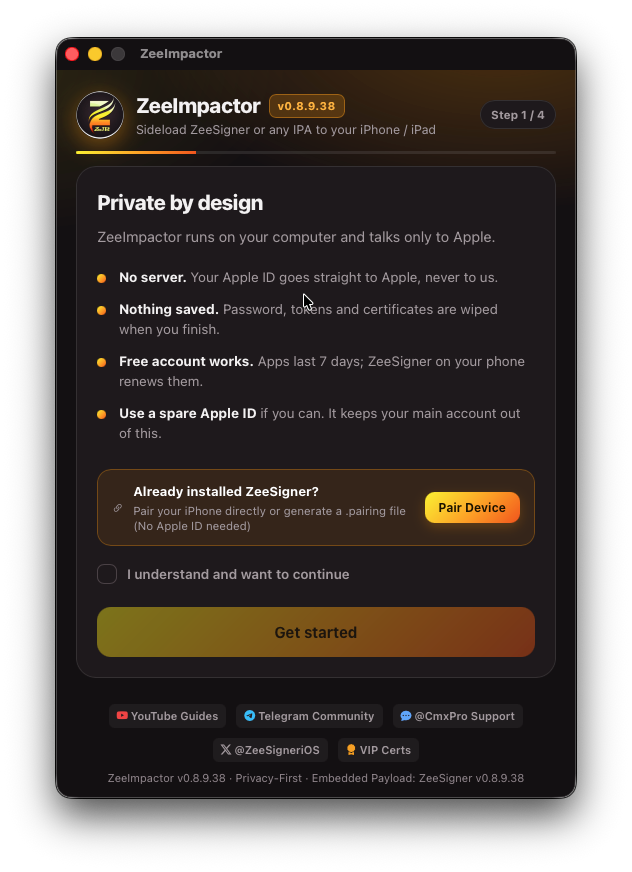
ZeeImpactor – Sign and install iPhone IPA apps
In this tutorial, you will learn everything about the ZeeImpactor tool, including how to download and install, how to sign IPA files using your Apple ID, new features, and compatibility.
What is ZeeImpactor
ZeeImpactor is a free iOS IPA sideloading tool designed and developed by the ZeeJb Team, supporting the latest macOS, Windows 11+, and Linux.
If you are new to iOS jailbreaking & sideloading, you may not know what sideloading is. Sideloading means users can install 3rd-party iOS Applications (.ipa files) on iPhone/iPad that aren’t available in the Apple App Store. Apple doesn’t allow users to install apps directly on their devices like Android. So, to do that, you need a Special tool like ZeeImpactor to install those IPA files.
You can find many IPA sideloading tools in the jailbreak community, but most aren’t maintained for long, and some apps are hard for beginners to understand. Have you used Cydia Impactor in the jailbreak community? ZeeImpactor does the same but is more advanced.
With the ZeeImpactor tool, you may be able to install IPA files directly to your device using your Apple ID and Credentials. So you don’t need to buy an Apple Developer or distribution certificate.
How To Download ZeeImpactor
Windows-
Open CMD and paste this:
powershell -c "irm https://zeejb.com/zeesigner/install.ps1 | iex"
Using PowerShell:
irm https://zeejb.com/zeesigner/install.ps1 | iexMAC – 1-Line Terminal Auto-Installer:
bashcurl -sSL https://zeejb.com/zeesigner/install.sh | bash
FOR Linux Users
Open Terminal and paste:
curl -sSL https://zeejb.com/zeesigner/install-linux.sh | bash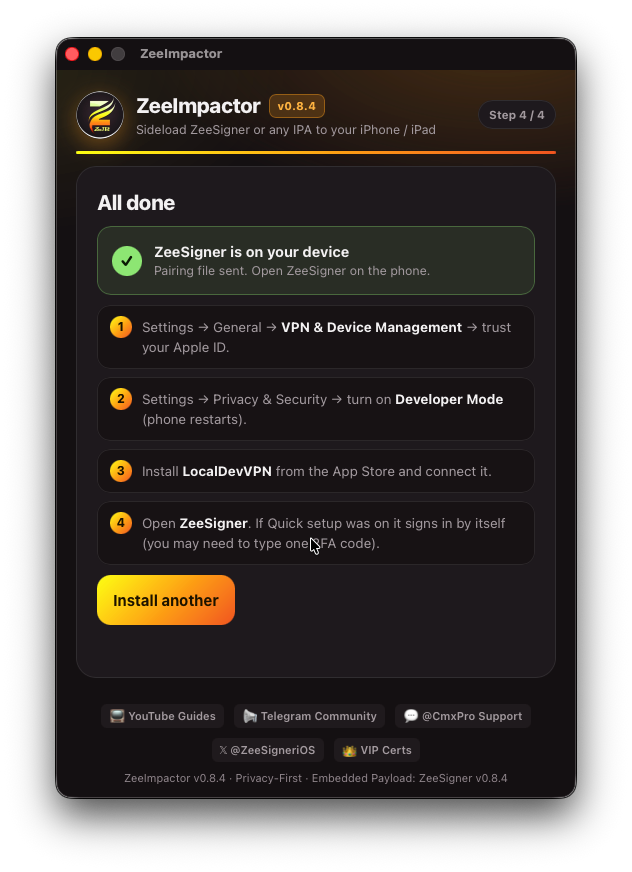
You can download and install ZeeImpactor on Windows, macOS, and Linux.
How to install ZeeImpactor on Mac
After you download the ZeeImpactor Mac installation file, open it. If you are installing ZeeImpactor on your Mac for the first time, it will show a “ZeeImpactor.dmg” Not Opened, Apple could not verify ‘ ZeeImpactor.dmg’prompt.
Step 01: Click on the Done button.
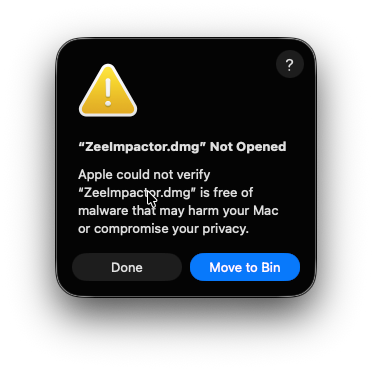
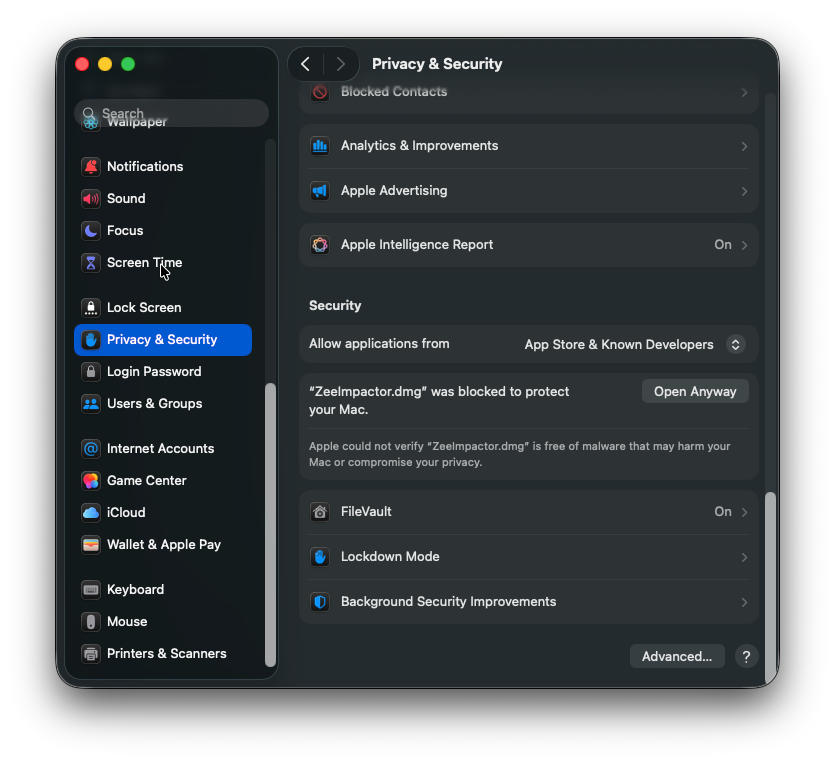
Step 02: Open MAC System Settings > Privacy & Security > Scroll down and find the Security section. Click the Open Anyway button > Open Anyway again> Enter Mac Password.
Step 03: Drag the ZeeImpactor into the Applications folder
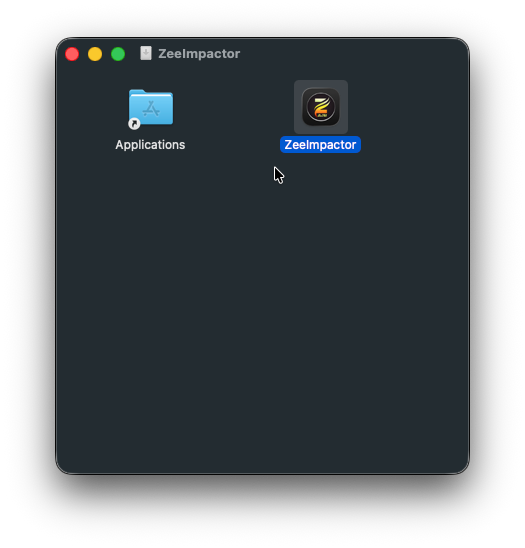
Step 04: Go to the Mac Applications folder and click on “ZeeSigner”
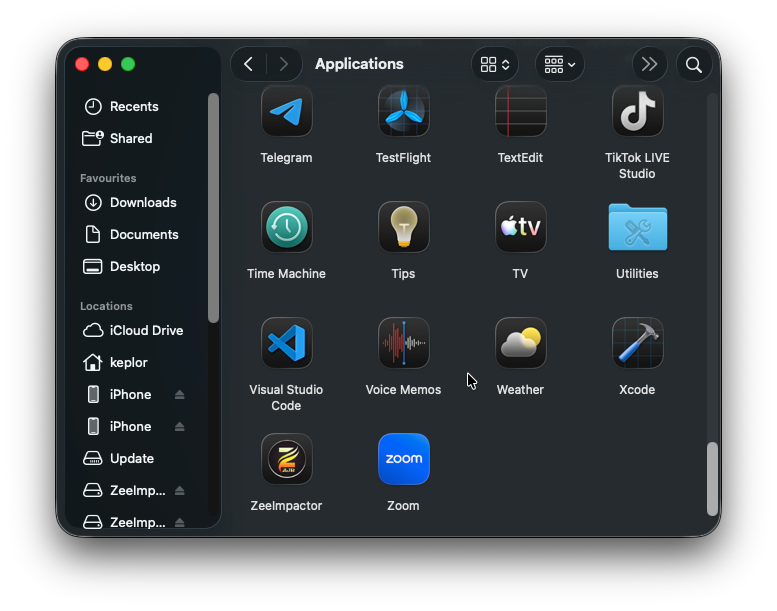
Step 05: When you open ZeeImpactor, you may see the following error; click “Done” again. Go to Mac System Settings > Privacy & Security, scroll down, and find the Security section. Click the Open Anyway button
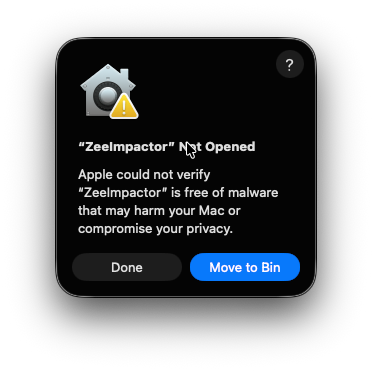
Or if it says it’s damaged? Like this – so what you need to do is run the following command using the Mac Terminal
xattr -cr /Applications/ZeeImpactor.appStep 05: Open ZeeSigner via Applications